

463·
16 days agoYou’re right, I missed that.
I personally use a reverse proxy and Wireguard setup to access remotely.

Sysadmin and FOSS enthusiast. Self-hosting on Proxmox with a focus on privacy and digital sovereignty. Documenting my experiences with Linux, home labs, and the ongoing fight to keep Big Tech out of our hardware.
You’re right, I missed that.
I personally use a reverse proxy and Wireguard setup to access remotely.
I have a dedicated VPS with reverse proxy connected to my network via Wireguard. It acts as the front door to my network so I don’t have to port forward or rely on Cloudflare etc. I used to use Tailscale as the go between but switched to WG recently. Both work fine for streaming content whilst self-hosting all other services including my website.

My bad, GOG is absolutely the gold standard for DRM-free ownership. Personally, I buy on Steam for the convenience and the Proton support but I still collect every free titles on GOG
It’s why I treat everything cloud-based as a rental now. If I can’t install it locally and back up the data myself, I don’t really own it.
The home server is an old, low-powered mini PC running Debian. It acts as the bridge between the WireGuard tunnel and my local LAN.
I’ve just finished migrating one of my AdGuard Home instances onto it today. Its role is now twofold:
Routing: It has ip_forward enabled and a bit of NAT (iptables/nftables) so that traffic arriving from the VPN can actually “hop” onto the local network to reach my other VMs and containers.
DNS: It provides ad-blocking for the tunnel. VPN clients point to this node’s internal WireGuard IP for DNS queries.
Technically, it’s just another WireGuard peer, but with AllowedIPs configured to advertise my 192.168.x.x subnet back to the hub (VPS2). This is what allows VPS1 and my mobile devices to resolve and reach home services without a single open port on my router.
You’re right, and for a lot of people, one VPS is the sensible choice. I actually addressed this in the post:
"VPS1 is my web-facing server. It handles the public side of things. VPS2 is the VPN hub. At first glance, that probably looks unnecessary. Strictly speaking, it is unnecessary. I could have crammed WireGuard onto VPS1 and called it done. But splitting the roles makes the whole thing cleaner.
One machine serves public traffic. The other handles VPN duties. That means fewer networking compromises, fewer chances of Docker or firewall rules becoming annoying, and a clearer separation between the public-facing stack and the private tunnel. It also means I can change one side without poking the other with a stick and hoping nothing catches fire."
It’s not that I didn’t like it, I just wanted to back to basics! A simple config file on each machine, job done
Exactly that, VPS2 handles the WireGuard port and has no domain pointing to it, so it’s basically hiding in plain sight. VPS1 holds the domain and handles the web traffic.
I keep SSH open on both, but locked down (key-based auth + restricted to my IPs).
Your idea of using the provider firewall (Ionos in my case) as a “mechanical” lock is a good one, block it at the edge and only open it when needed. I’ve thought about doing that, but I’m generally happy relying on a hardened SSH config and the provider’s KVM if everything goes sideways.
Thank you for the heads up, turns out it was the custom html code in the code blocks causing the issue. Fixed now.
dist-upgrade and full-upgrade are essentially the same command but yeah, I won’t be using apt upgrade again in the future! Like I said in my post, the joys of being self taught is that you learn by my making mistakes and that’s part of the “fun” 🤣


Thanks for the feedback. You’re right, it’s really just scanning for known extension IDs, not poking around your entire computer. Saying “computer scan” might sound a bit dramatic, but the privacy risk is still pretty serious given what info they can guess from those extensions.
About the home lab and network side — I get that LinkedIn isn’t scanning your whole network or anything. What I meant is more about how you can block or filter those sneaky requests at the network level, like with DNS blocking or firewall rules, so they never even get sent out. It’s not a classic home lab threat, but if you’re running your own DNS or network filters, it’s a handy extra layer to keep things tighter.
Sure, switching browsers or faking your user agent works too, but not everyone wants to give up Chromium or LinkedIn completely. That’s why I mentioned a few different ways to protect yourself.
Appreciate the note on wording — I just wanted to show why this isn’t just some minor browser oddity and why it’s worth thinking about from a privacy and network defence angle.
Spot on. If you can see a user has certain VPN clients, IDEs, or specific advocacy tools installed, you’ve essentially built a psychological profile of an employee’s home environment without them ever clicking ‘Accept’. It’s a massive GDPR Article 9 violation (Special Category data) hidden in plain sight.
Mostly, yes. Firefox doesn’t use the specific Chromium internal resource API that LinkedIn is exploiting for this. However, since the script relies on hidden GET requests, I still recommend Multi-Account Containers to isolate LinkedIn entirely, plus a custom uBlock Origin filter just to be sure.
Did you find it, I think the Lemmy server is having a few issues today. https://the.unknown-universe.co.uk/privacy-security/linkedin-browsergate/


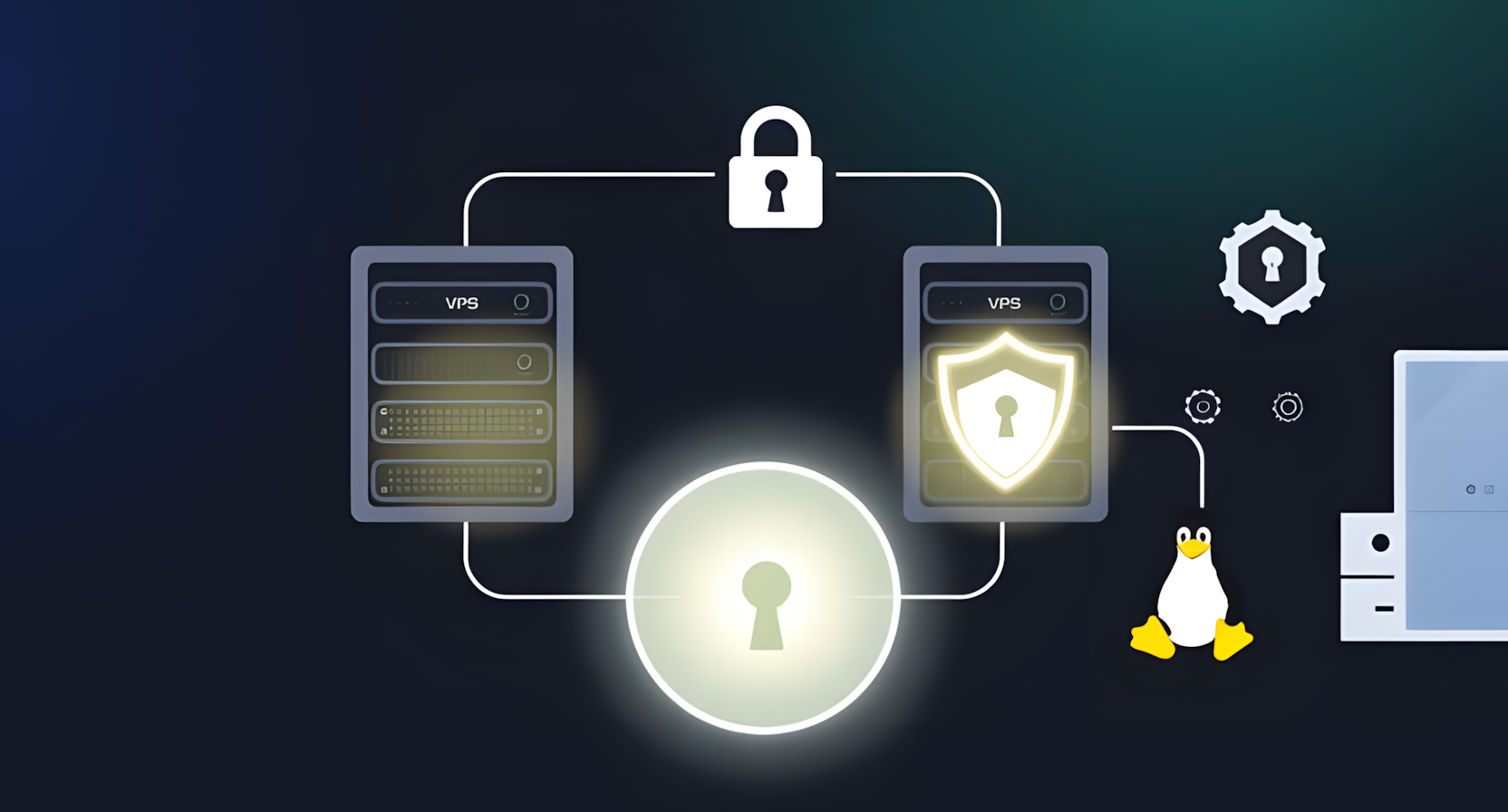






Dedicated PC on LAN talks directly to VPS via Wireguard. The local machine acts as an exit node so when I add a local IP and port to my reverse proxy the whole thing acts like a local network.
I wrote about my setup last month; https://the.unknown-universe.co.uk/home-lab/wireguard-vpn-two-vps/